Global configuration
Manage your tenant
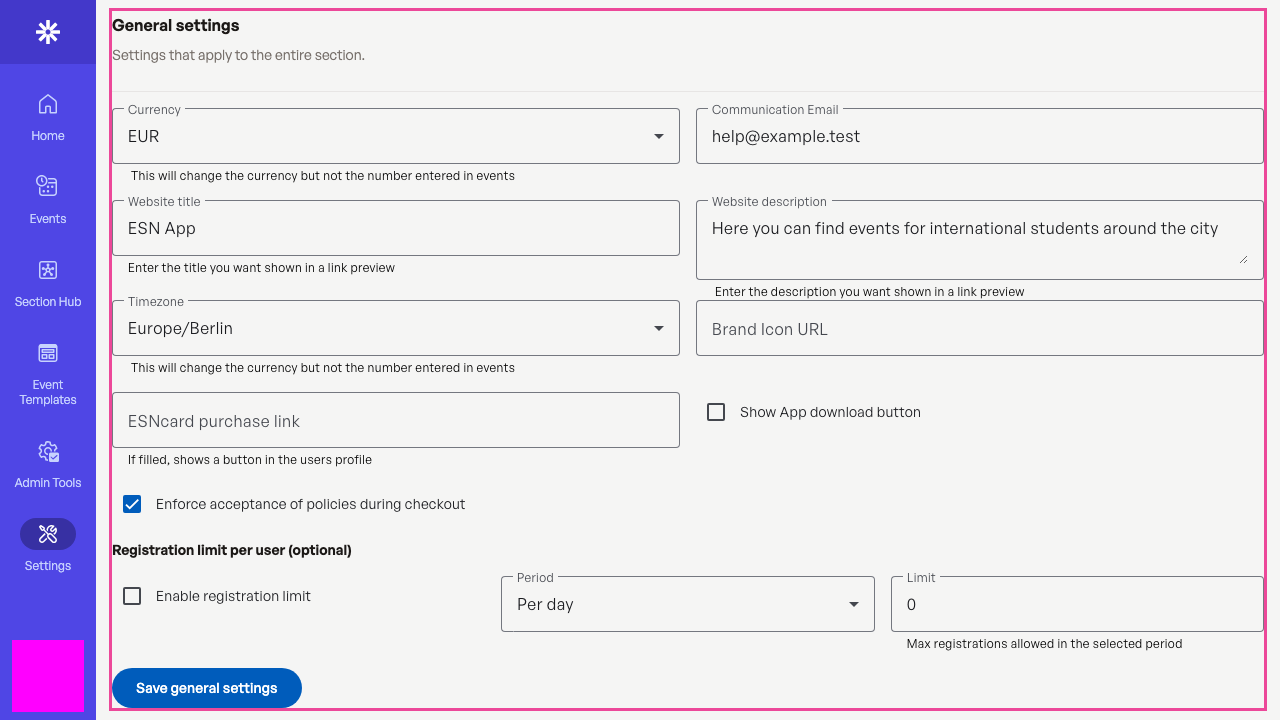
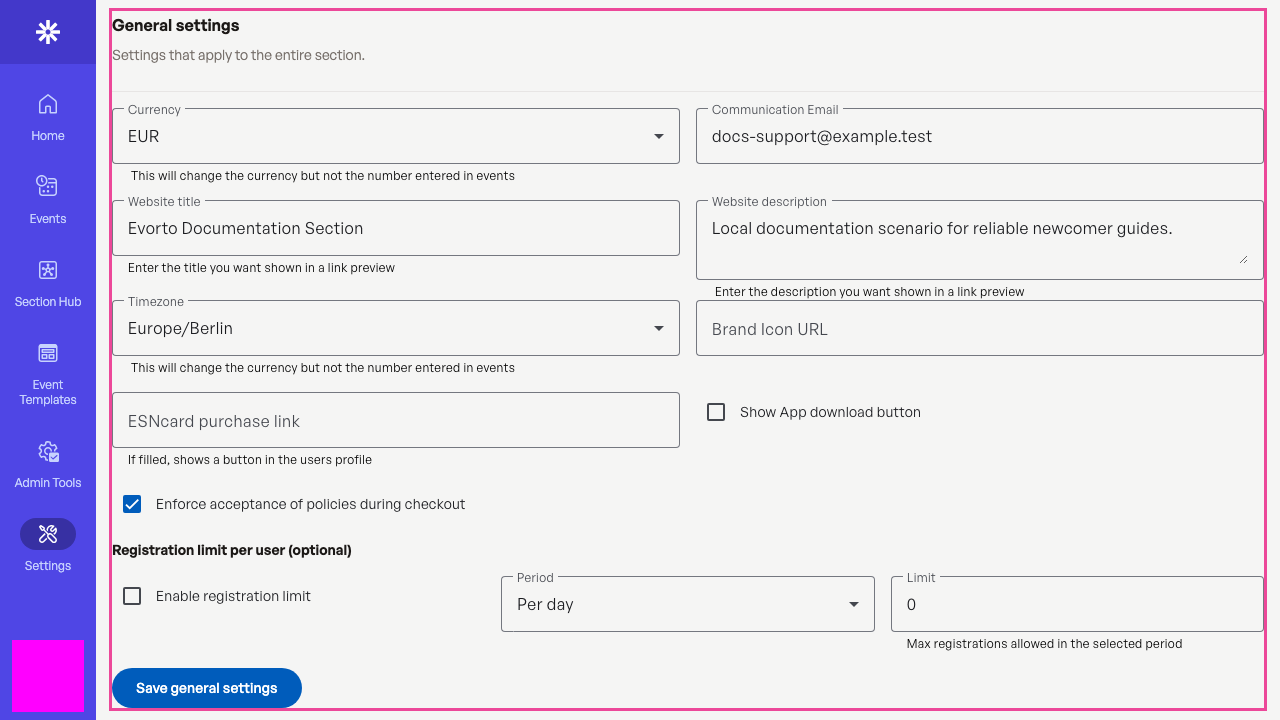
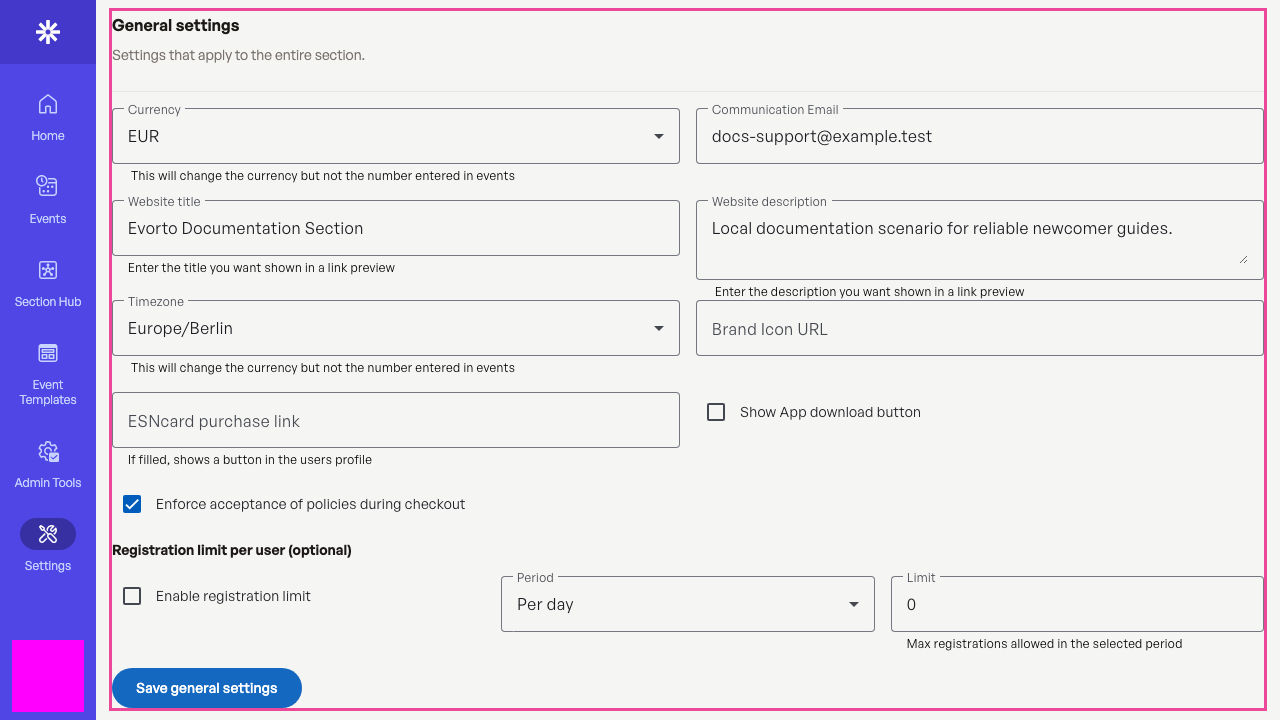
In the tenant management you can change all settings that are relevant globally. The different configurable parts will be explained in the following. To do this, select the Settings item in the navigation bar. And then select the Section tab.

Global info
There is some information that is displayed in multiple places across the app.
- Currency: This is the currency that is used for payments. Please note: The currency is not automatically converted.
- Communication Email: Please that users can write to if they have questions.
- Brand Icon: If this field contains a URL, the very top left image will be replaced by it.
- ESNcard link: If this field contains a URL, the user will see a Purchase ESNcard button in their profile. If they click on it, they will be redirected to the link specified here.
- App download hint: If you activate this option, the navbar can display a hint to download the website as an app. This is only displayed if certain conditions are met.

Home page
The first option is to select the behaviour of the home page. You have multiple options to choose from:
- Link to page: This option will send your users to the link specified in the Home page link field when they click on the home entry.
- Render markdown: This option will render the markdown entered in the About us field as the home page.
- Static page: This option will display a static page. To use it you will need to create a static page in code. If you have not yet received a specific static page, please reach out to get started.
- Don't show the link: This option will just hide the home entry from the navigation.

App banners
Here you can add banners that are displayed in the app. A banner consists of a title, a body, a link, a color and the visibility. The title and body are displayed in the banner. The link is opened when the user clicks on the banner. The color is used as the background color of the banner. The visibility defines which users will see the banner.

Resource links
Here you can set up the icons that are displayed in the resources list of the section hub. The label is displayed next to the icon. Use the icon field to define the icon that should be displayed. Lastly, the link field defines the link that should be opened when the entry is clicked. 
Social links
Here you can set up the icons that are displayed on the very bottom of every page. The label is currently not displayed anywhere. Use the icon field to define the icon that should be displayed. Lastly, the link field defines the link that should be opened when the icon is clicked. 
De registration configuration
The de registration options allow you to define global settings that manage if users can de register from events or move their registration to other users. Additionally, you can decide if the stripe payment fees should be refunded for events that require payment. Any setting defined here can be changed per event. 
Website contents
At the bottom of the page, you can find multiple text areas that allow you to define the imprint, FAQs, privacy policy and terms and conditions. These texts are displayed in multiple places across the app. As before, these texts can be written in markdown to have some formatting.