Organizer
Create an event
Required permissions
- Section member: Your membership status must allow access to event templates.
- Available template and event organizer: An admin must create both before members can create an event. Events begin with a reusable section template. Open Events and select Add Event. If this action is missing, your section membership does not grant template access; ask a section admin to check your status.
Start with Add Event to choose a section template.
Choose a template
Expand the category that matches the activity, then open the template. Templates provide the public description, organizer instructions, meeting point, and normal duration. If no suitable template exists, stop and ask an admin to create or update one instead of choosing an unrelated template. 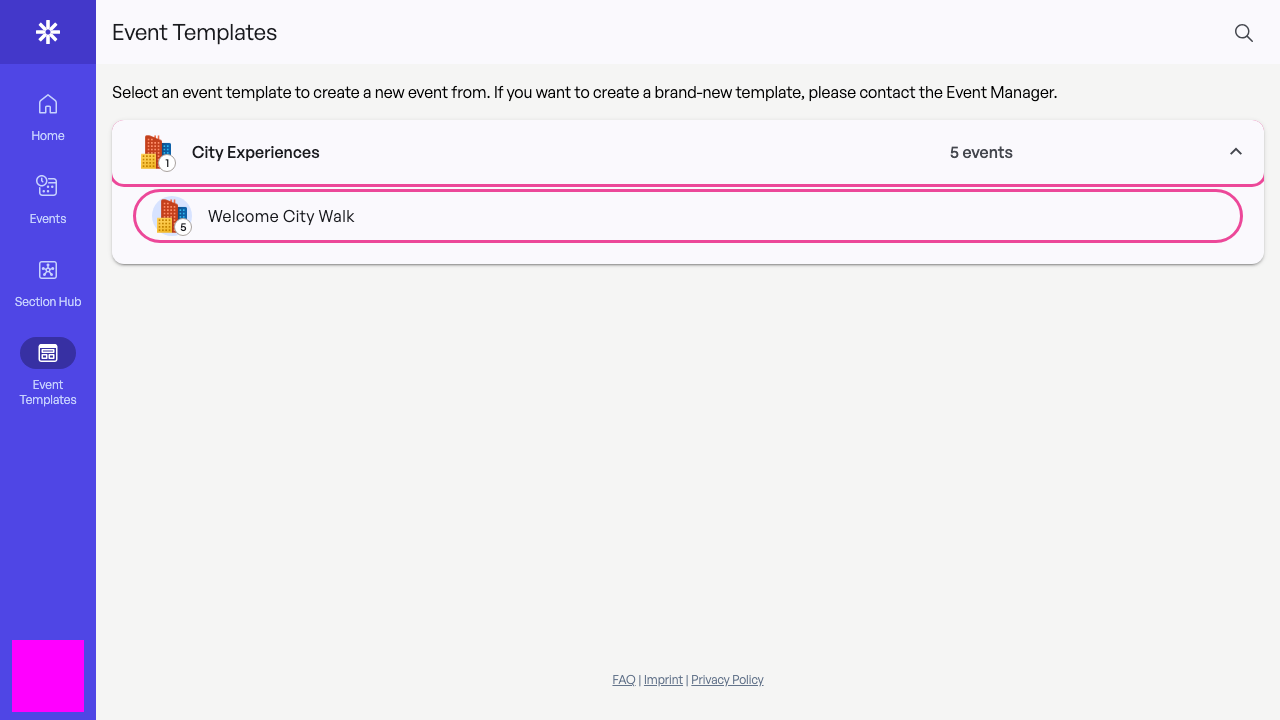 Open the template that best matches the planned event.
Set the initial event details
Choose a start time, Online (free events) for a free Evorto registration, participant and organizer limits, and the event organizer responsible for the activity. The end time follows the template duration and can be adjusted later.
Use External only when registration happens on another service. Paid Stripe events require a separate payment workflow and are not covered here. 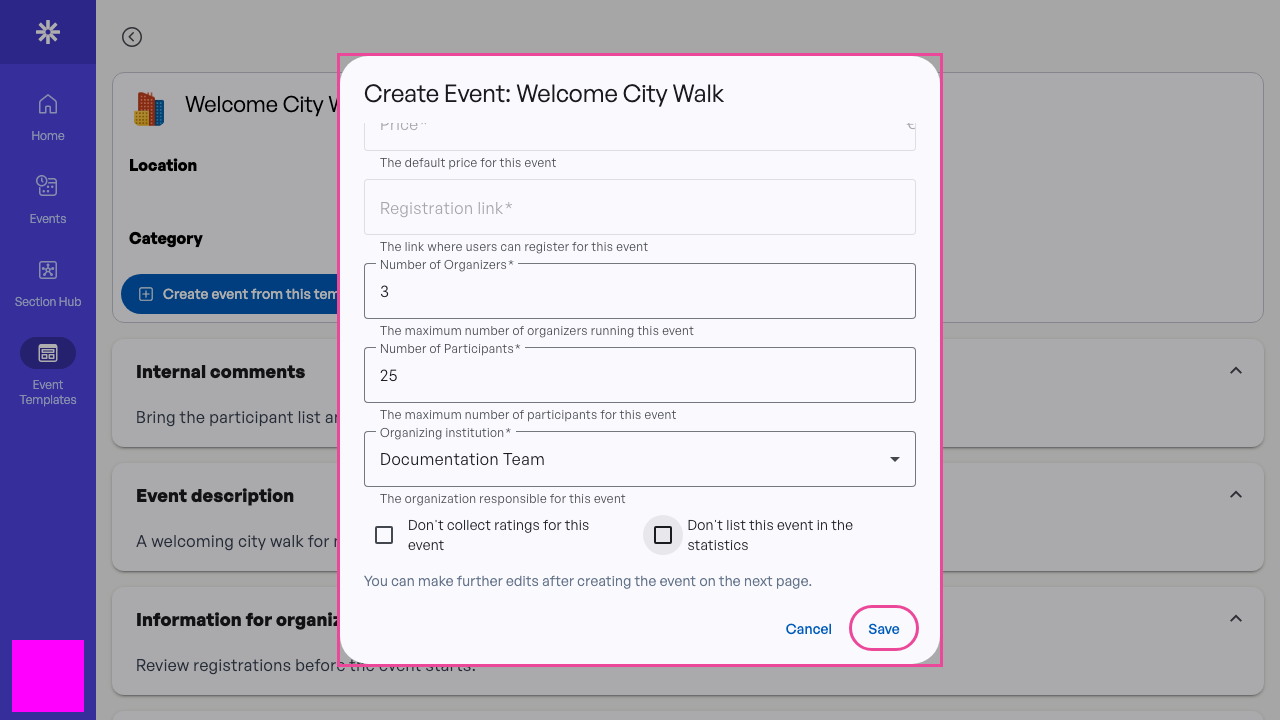 Review the registration mode, limits, and event organizer before saving.
Confirm the draft
Evorto opens the new event in the editor. Reaching Edit Welcome City Walk confirms that the draft was created; review its text, dates, eligibility, and registration settings before submitting it for approval. 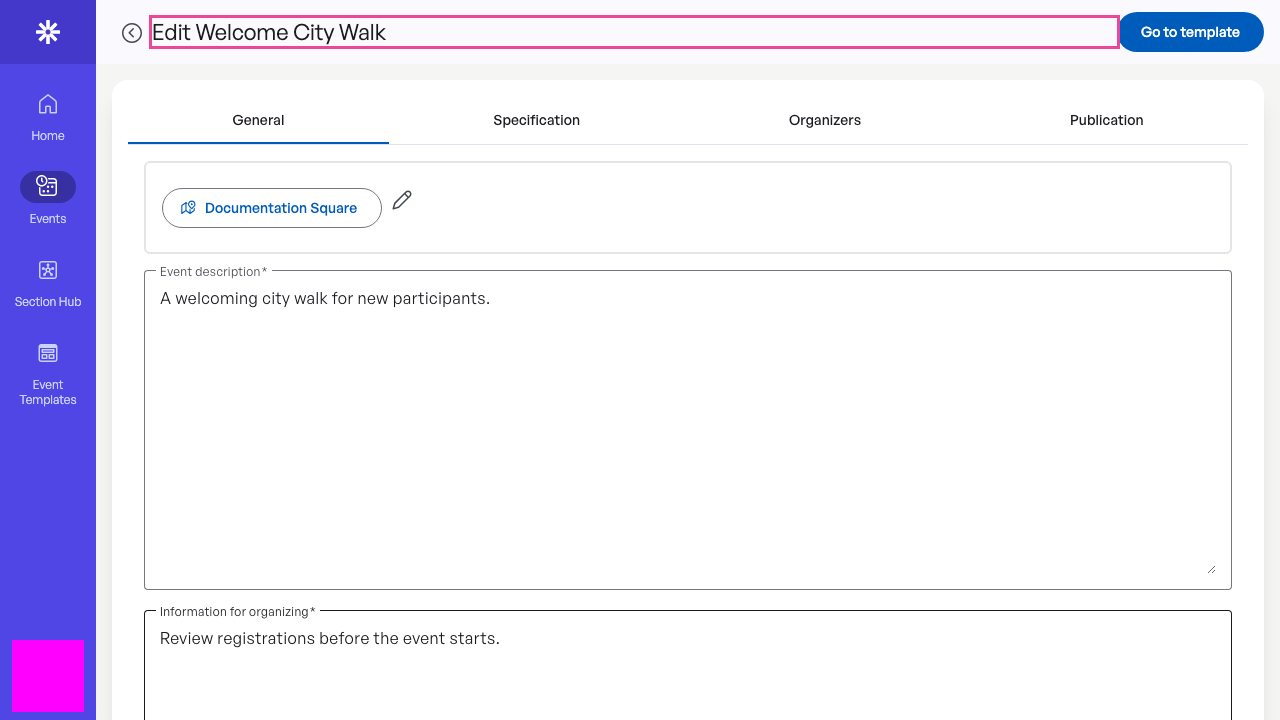 A successful create action opens the new draft in the event editor.